Instagram Business + Webhooks Integration
This guide shows how to connect an Instagram Business account to the system to enable:
⚠️ Some Meta screens may change visually over time, but the integration flow remains the same.
- Instagram Login
- Message receiving (DM)
- Real-time Webhooks
- Automated customer service
Prerequisites
Before you begin, you need to have:
- A Professional Instagram account (Business or Creator)
- A Facebook account connected to Instagram
- A Meta Developers account
1. Creating the App on Meta
Go to:
https://developers.facebook.com/apps/
Click on:
- Create App
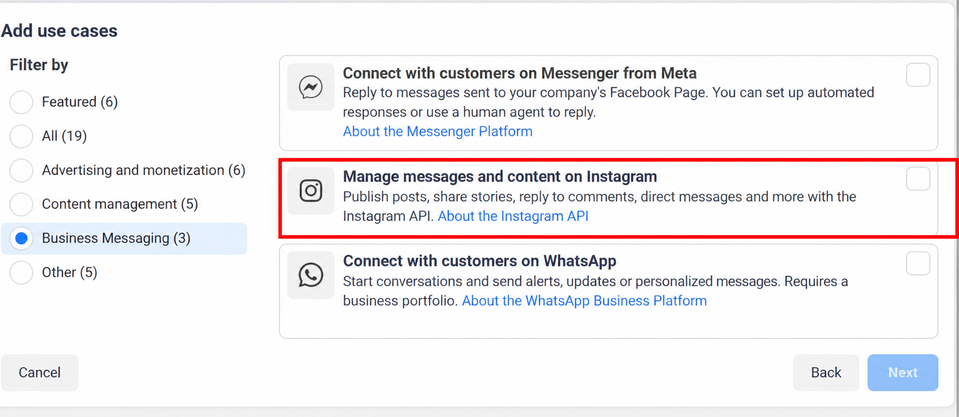
Choose the app type
Select:
- "Business"
Then click:
- Next
Configure the application
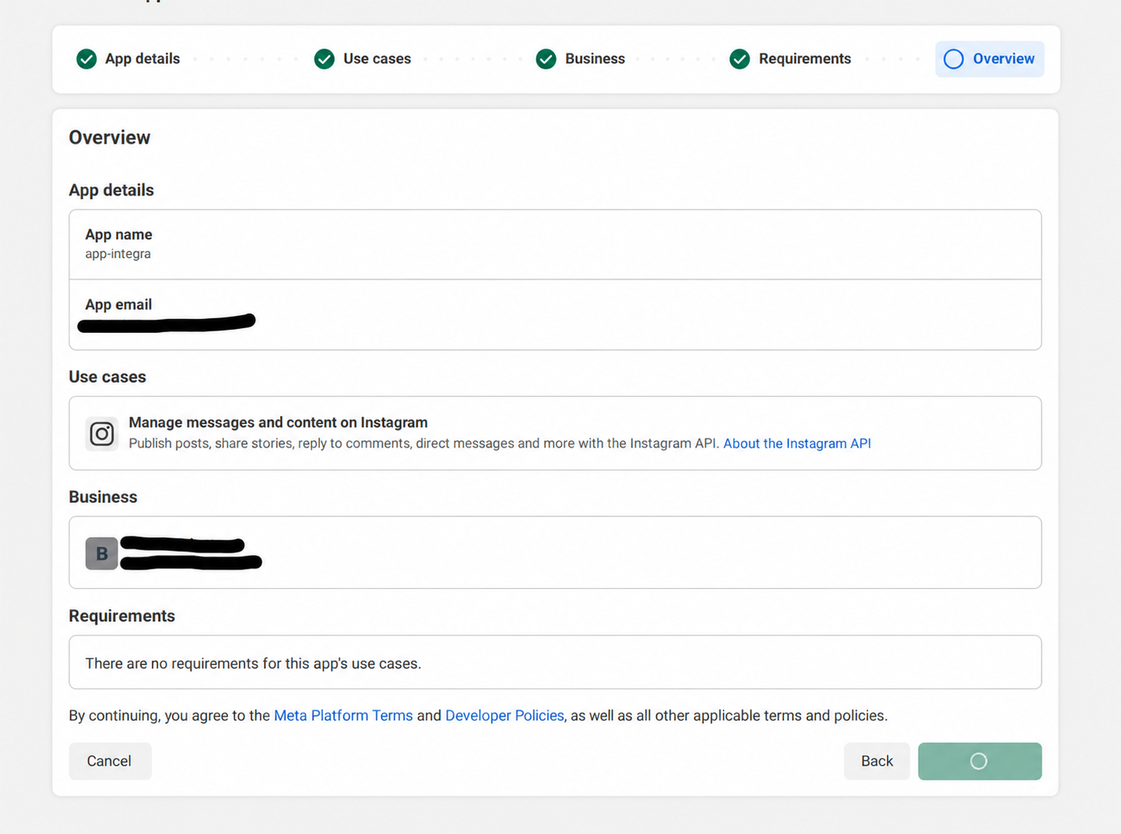
Fill in:
- Application name
- Contact email
- Business account
Then click:
- Create App
2. Adding the Instagram API
Inside the app dashboard:
- Go to Add Product
Search for:
- Instagram API
Click:
- Set Up

3. Opening the API configuration
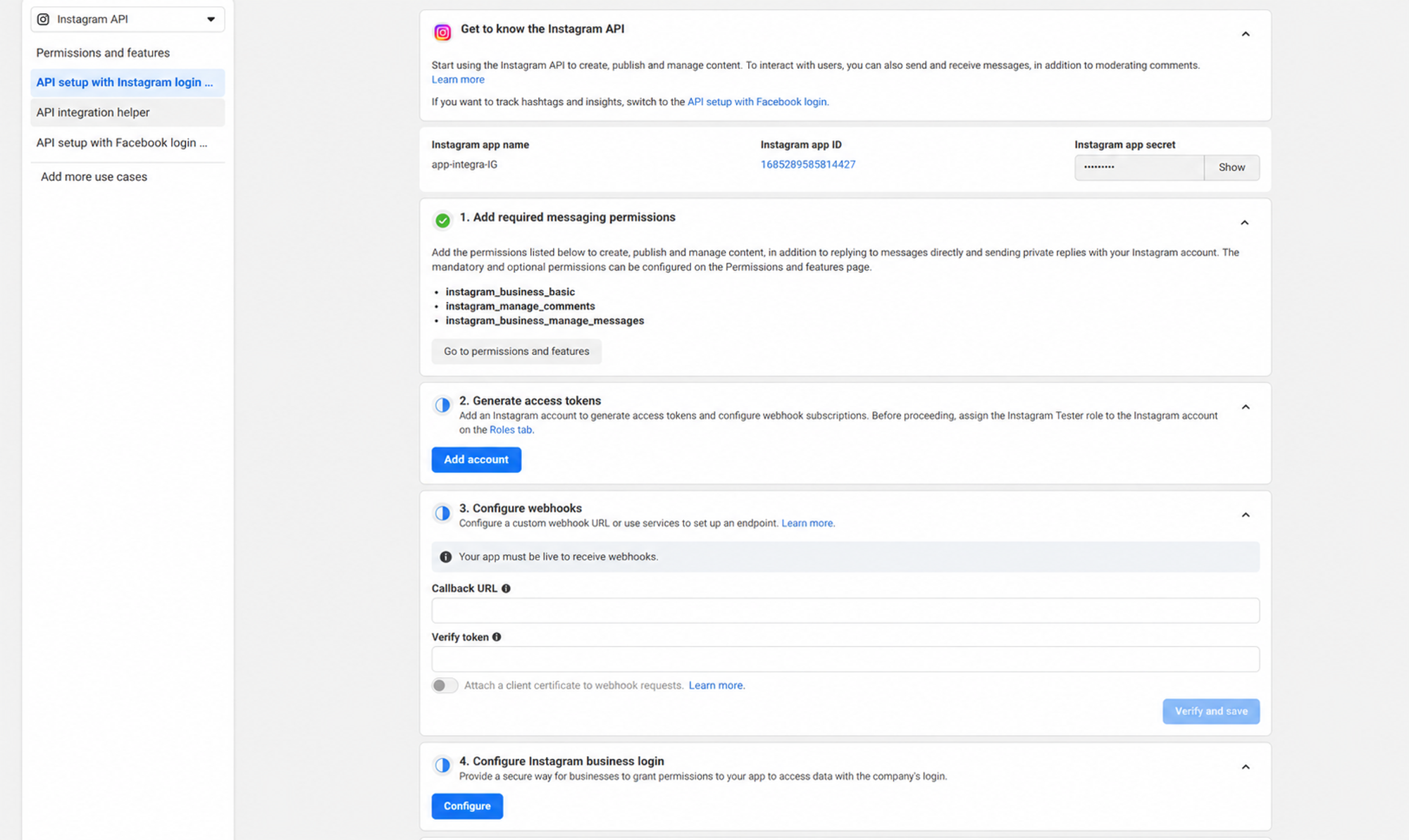
- API Setup
You will see:
- App ID
- App Secret
4. Adding permissions
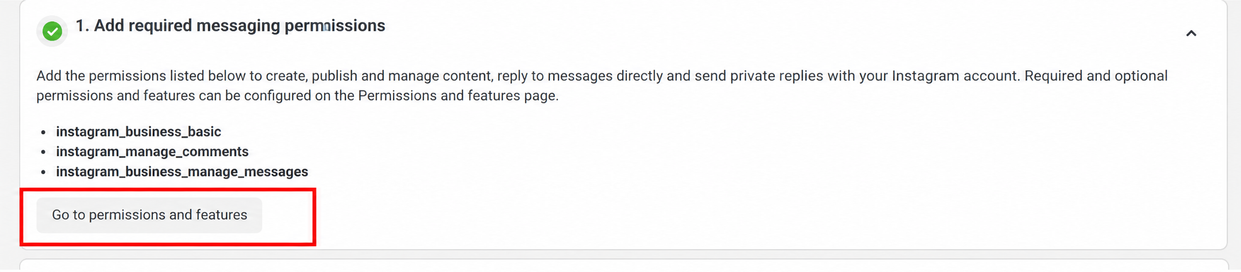
Click:
- Add all permissions
The required permissions will be added automatically:
- instagram_business_basic
- instagram_business_manage_messages
5. Adding the Instagram account
In the section:
- Generate Access Tokens
Click:
- Add Account

6. Logging into Instagram
A window will open.
Now:
- Log in to the Instagram account
- Click Allow
- Authorize access
⚠️ The account must be:
- Business
- or Creator
7. Copying the Access Token
After logging in:
- A token will be generated
- Copy the token
Example:
IGAAxxxxxxxxxxxxxxxxxxxx

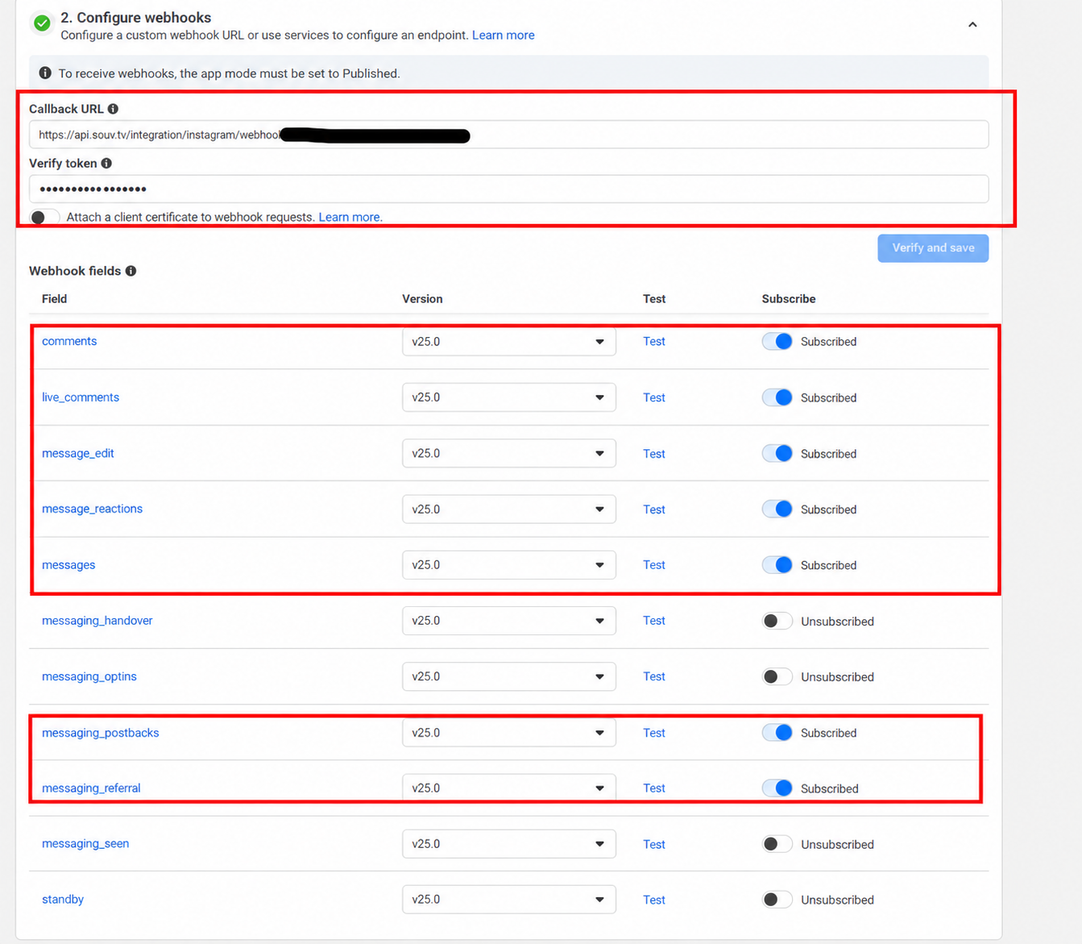
8. Configuring the Webhook
In the section:
- Configure Webhooks
Fill in:
| Field | Value |
|---|---|
| Callback URL | URL provided by the system |
| Verify Token | Token provided by the system |
Example:
Callback URL:
https://api.yoursystem.com/webhook

Verify Token:
my_token
Then click:
- Test and Save
If everything went correctly, the system will show an alert confirming it's all set

After saving, the system will generate the Webhook URL

9. Subscribing to events
After validating the webhook:
Copy the system URL as shown in the example above, along with the verification token!
Save it.
Subscribe to the available events:
These events allow you to receive messages in real time.
Configuring Instagram Business Login
In the section:
- Configure Instagram Business Login
Add:
- Redirect URI
Example:
https://app.yoursystem.com/auth/instagram/callback
Then click:
- Save
13. Done ✅
After completing:
- Instagram will be connected
- Messages will be received automatically
- The system will start receiving events via webhook
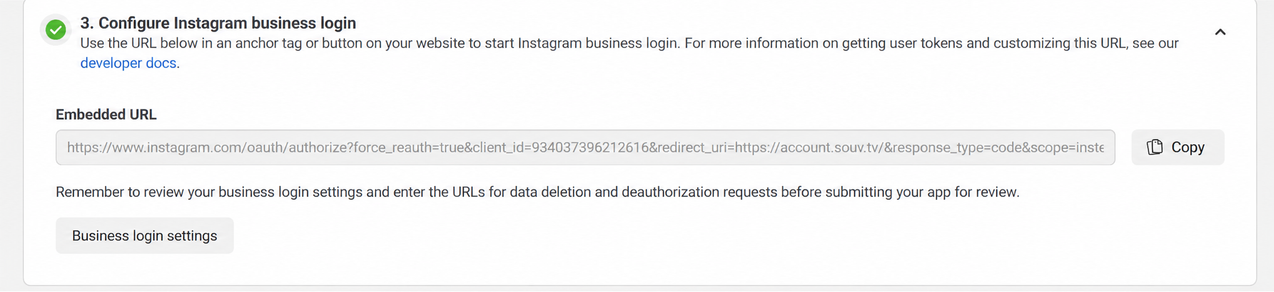
What is this URL for?
At this step, Meta generates an Instagram Business Login URL.
This URL is used to initiate the connection between the Instagram account and the system.
What to do at this step
- Locate the Configure Instagram Business Login section.
- Copy the URL displayed in the Embedded URL field.
- Send this URL to the team responsible for the system or register it in the designated location.
- This URL will be used in a button, such as Connect Instagram.
When the user clicks this URL, they will be taken to the Instagram login screen.
After logging in and granting access, Instagram automatically redirects to the URL configured in the system.
Possible errors
Personal account
Error:
Instagram account type not supported
Solution:
Convert the account to:
- Business
- or Creator
On Instagram:
- Settings
- Account
- Switch to professional account
Instagram not connected to Facebook
Instagram must be linked to a Facebook page.
On Instagram:
- Settings
- Accounts Center
- Link Facebook
Official documentation
Instagram API:
https://developers.facebook.com/docs/instagram-platform/
Webhooks:
https://developers.facebook.com/docs/instagram-platform/webhooks/
Instagram Login:
https://developers.facebook.com/docs/instagram-platform/instagram-api-with-instagram-login/